Google Lens for Antiques: What It Can and Can't Tell You
You pointed Lens at the thing, and it gave you a page of look-alikes and no answer. That's not Lens failing. That's Lens doing exactly its job. Here's how to get more out of it, and what to do with the matches it gives you.
Google Lens for antiques is a free, fast first step: it finds visually similar images and listings, which can give you a name, a maker or a pattern to search next. It does not give a valuation, and a look-alike is not the same item. Use the matches as leads, then check sold prices and the maker's mark before you decide what your piece is worth.
What Lens is genuinely good at
Credit where it's due. Lens costs nothing, it's already on a lot of phones, and it answers in seconds. Google describes the method plainly: Lens compares the objects in your picture to other images and ranks them by how similar and relevant they are. It also reads the words and other information on the pages where those images live.
For antiques, that makes it very good at one job: finding things that look like yours. Those matches often come from eBay and Etsy listings, auction catalogs and museum pages. Read the titles and you may pick up a maker's name ("Royal Doulton"), a pattern name, a style ("Art Deco", "Eastlake") or a category word you didn't know ("epergne", "cruet stand"). Any of those is a better search term than "old glass bowl with feet".
So if Lens gave you a screen of look-alikes, you haven't wasted your time. You have a list of leads. The rest of this guide is about working those leads properly.
How to use Google Lens on an iPhone
On iPhone, Lens lives inside Google's own apps, not the built-in Camera. The quickest route is the Google app:
- Take a clear photo of the whole piece firstPut it on a plain surface in soft daylight, away from direct flash. A clean photo gives Lens less clutter to match against.
- Open the Google app and tap the Lens iconIt's the camera icon in the search bar.
- Take a new photo or pick one from your camera rollChoosing from the camera roll lets you use the photo you just took, or one a relative texted you.
- Add words to narrow the searchUse "Add to your search" to type words such as the material ("sterling", "porcelain", "oak") or the mark you can read. Google says this option is only available in the Google app.
- Open the matches and read the listingsLook at the titles, the makers and the descriptions, not only the pictures. Note every name or pattern that keeps coming up.
Other ways in, if you prefer: in Google Photos, open the photo, tap More (⋯), then Google Lens. In Chrome, touch and hold an image on a web page and choose "Search image with Google Lens". That's useful when the item is in an online estate-sale listing rather than in your hands.
Five ways to get better matches
- Crop to the object. Trim away the tablecloth, the other items on the shelf and your hand before you search. Lens matches what it sees, so give it only the piece.
- Search the mark on its own. Turn the piece over and take a close, sharp photo of the stamp, signature or hallmark. Then run that photo as a separate search. A photo of the whole object rarely shows a small mark clearly enough to read. Results for marks vary, but when they work they can name the maker. Our guide to pottery marks on the bottom explains what to look for.
- Add the words you already know. Material, color, country name, anything legible in the mark. "Blue transferware plate England" beats a photo alone.
- Try a second angle. A side view of a teapot and a top view of the same teapot can bring back quite different matches.
- Take the name to a text search. Once Lens gives you a likely maker or pattern, type it into a normal search. You'll find collector pages and references that Lens didn't show.
What Lens can't tell you
None of these is a complaint about Google. They are the practical limits of any tool that works by matching pictures.
- It doesn't value anything. Lens gives you no valuation. The prices you see on matched listings are usually asking prices, which are what sellers hope for, not what buyers paid. They may also be for a different size, condition or edition.
- Look-alike is not the same item. Two vases can share a shape and a glaze and still come from different makers, decades apart, at very different values.
- Small marks get lost. A whole-object photo won't read a worn impressed mark on a base. Even a close-up search can misread it.
- It can't tell a reproduction from an original by look. A good reproduction and the original look the same in a photo. So Lens can match your 1980s copy to listings of the 1880s piece, or the other way round.
- It may only show the top guess. Google's own explanation of Lens gives an example where it shows the most likely answer and leaves out a less likely one. For an antique, the second possibility is often the one that matters.
What about Apple's Visual Look Up?
If you use an iPhone, you may have noticed a small star on the Info button when you view a photo. That's Visual Look Up, built into iOS 15 and later. Apple says it recognizes things like famous art, landmarks, plants, pets, books and food, and it isn't available in all regions or languages.
That list tells you what it's for. It is not designed for identifying or valuing antiques. For an ordinary piece of old pottery or furniture you'll often get no result or a very general one, and you won't get a value.
Newer iPhones with Apple Intelligence also have Visual Intelligence, which can search for similar images through Google or ask ChatGPT about an object. It's handy, but it's the same kind of look-alike search. The exact steps depend on your iPhone model and iOS version, so we won't give step-by-step directions here.
After a match: turn look-alikes into a price
Here is the part most people skip. Lens got you a name. Now you need evidence of what pieces like yours actually sell for.
- Follow the listing trail to sold prices. Take the maker and pattern from the best matches and search eBay with the Sold items filter on. That shows what buyers actually paid over about the last 90 days, not what sellers are asking. Our step-by-step guide on checking eBay sold prices for antiques covers the filter, Best Offer quirks and how to compare fairly.
- Read the mark yourself. Compare your mark with the one in the listing. Same wording, same shape, same position? If not, you may have a different maker or a later version. Start with how to read pottery marks, or sterling or silver plate for metalware.
- Match condition honestly. A chipped piece doesn't sell like a perfect one. Compare yours with sold examples in similar condition, and look at several sales, not one.
If your photos were the problem, and they often are, our guide on how to photograph antiques covers the three shots that matter.
Google Lens vs Visual Look Up vs an antique identifier app
These tools do different jobs. Here's what each one does, set side by side.
| Google Lens | Apple Visual Look Up | Vintio | |
|---|---|---|---|
| Cost | Free | Free, built into iOS 15+ | 3 free identifications, then Vintio Pro |
| Finds look-alike images and listings | Yes, its main strength | Names well-known things (art, landmarks, plants, pets, books, food) | No listing search. Links to a pre-filled eBay sold search |
| Uses several photos plus your note | One image per search; you can add words in the Google app | No | Yes: whole piece, mark, detail, plus a note |
| Value estimate | No | No | Estimated range with the factors that move it |
| Confidence and alternatives | A list of matches, no confidence level | No | Confidence level; other possibilities when unsure |
| Signs to check for reproductions | No | No | Yes, as signs to check, not a verdict |
Google Lens and Visual Look Up columns are based on Google's and Apple's help pages, checked September 25, 2026. Features change, so check the current versions.
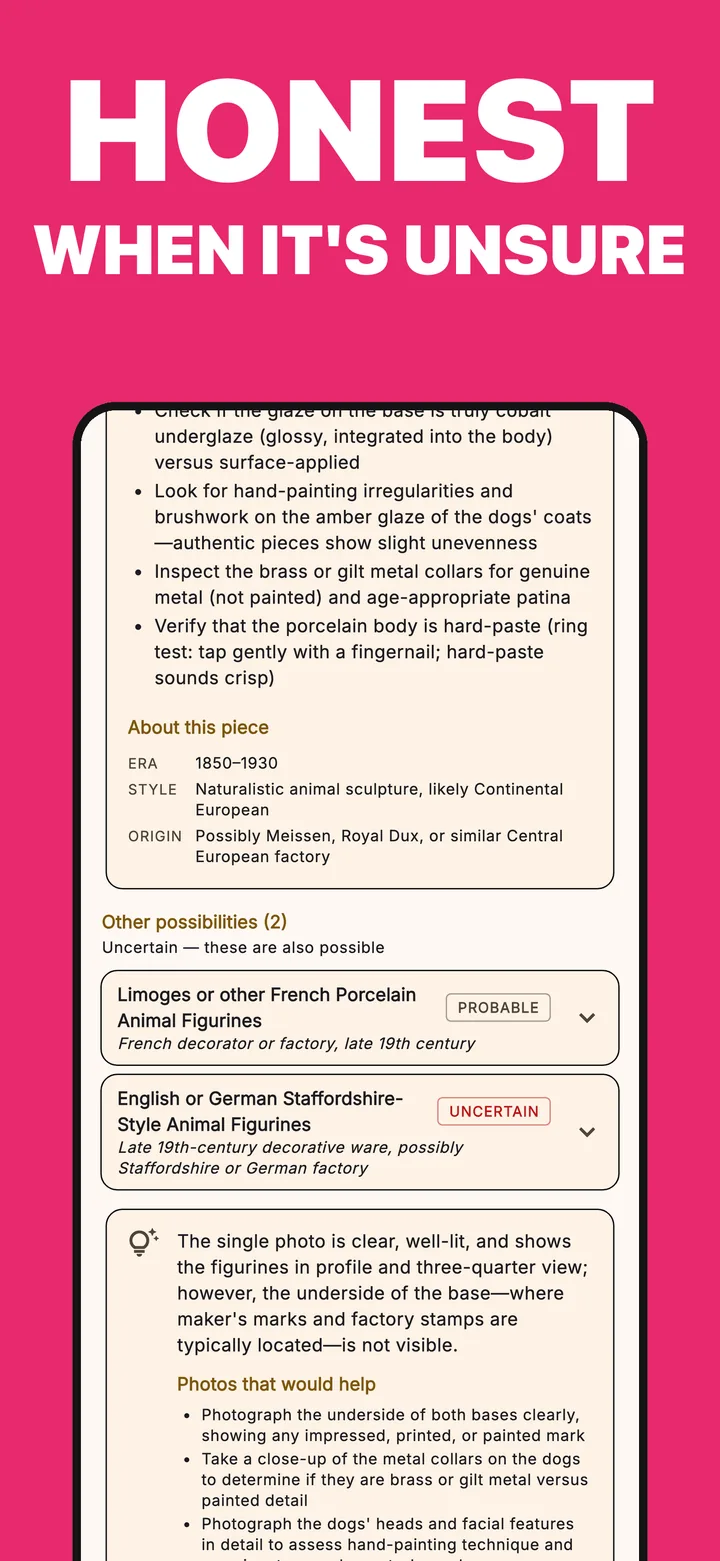
Lens asks "what looks like this?" Vintio, an antique identifier app for iPhone, asks "what is this, probably, and how sure can we be?" It takes up to three photos (the whole piece, the maker's mark, a detail or wear close-up) and a note in your own words, like "came from my grandmother's farmhouse in Ohio". It weighs them together.
You get what the piece likely is, a rough era, style and origin, and an estimated value range with the reasons behind it. Every match has a confidence level. When it isn't sure, it shows other possibilities side by side and tells you which extra photo would settle it. It's an estimate, and it says so. If a piece may be valuable, it tells you to get a professional appraisal before you sell.
Use both: Lens to find look-alikes, Vintio to reason about your piece. Get Vintio on the App Store. Your first 3 identifications are free.
Frequently asked questions
Can Google Lens tell me what an antique is worth?
No. Lens finds visually similar images and listings, but it doesn't give a valuation. Prices on matched listings are usually asking prices, often for a different size or condition. Use the names Lens finds to search eBay sold listings and auction results, and compare several sales of pieces in similar condition.
Is Google Lens accurate for antiques?
Lens is good at finding things that look like your piece, and that's a different question from what your piece is. A look-alike can be a different maker, a different date or a later reproduction, and a whole-object photo can't read a small mark. Treat the matches as leads to check, not an identification.
What should I do after a Lens match?
Write down the maker, pattern or style names that keep coming up. Compare your mark with the one in the listing. Then search those names on eBay with the Sold items filter on to see what similar pieces actually sold for. If a piece might be valuable, talk to an appraiser before you sell.
Does iPhone have a built-in antique identifier?
No. iPhone's Visual Look Up recognizes things like famous art, landmarks, plants, pets, books and food. It isn't designed for identifying or valuing antiques. For antiques you need Google Lens, a reference book or dealer, or a dedicated antique identifier app.
Updated September 25, 2026. Google Lens and Visual Look Up details come from Google's and Apple's help pages as of that date. These features change often. Vintio gives AI estimates for guidance, not professional appraisals.

Found a look-alike? Now ask what it is.
Add the mark, a detail and your note. Vintio gives you a likely identification, an estimated range with its reasons, and an honest word on how sure it is.

On a computer?Scan to get it on your iPhone.
Free to download · 3 free identifications · Pro is $4.99/week with a 3-day free trial, or $39.99/year · iPhone, iOS 15+